United Kingdom · PDF to Excel, CSV, QBO, OFX, Xero
Convert Lloyds Bank statements to Excel, CSV or QBO
BetaBeta: built from the bank's published layout
Lloyds statements carry a payment type code and a running balance on each row. The converter keeps the code separate and checks every balance. Download Excel, CSV, QBO, OFX, Xero CSV or QuickBooks Online CSV; the PDF never leaves your device. Beta: tested on synthetic replicas of the Lloyds Bank layout, not yet on real statements. Wrong row? Click "This row is wrong".
Lloyds Bank statement at a glance
- Country
- United Kingdom
- Statement columns
- Date · Description · Type · Credit · Debit · Balance
- Date format
- D MMM YY, D MMM YYYY, D MMM
- Number format
- 1,234.56
- Currency
- GBP
- Balance check
- Running balance on every row, then the closing balance
- Export formats
- Excel (XLSX) · CSV · QBO (Web Connect) · OFX · Xero CSV · QuickBooks Online CSV
- CSV from the bank
- Available
Lloyds Bank statement layout
What the statement shows
- Business statements can be viewed online, then printed or downloaded (exported) from the statement view.
- Public descriptions say statements list transactions with Date, Description, Type, Money In, Money Out and Balance columns; the layout is described by third-party guides and was not confirmed on a real file.
- As described, Money In and Money Out are separate columns, so the sign comes from the column and amounts are printed without a minus sign.
- A short payment type code is described as printed per row (for example DEB, DD, SO, FPI, FPO, TFR, BGC, CR).
- Dates are described as printed as day, short month and two-digit year (for example 03 Dec 25).
How the converter reads it
Lloyds Bank lays out its statement rows in six columns: Date, Description, Type, Money In, Money Out and Balance. The column order comes from third-party guides rather than from a Lloyds page.
More detail
- Past statements can be downloaded as PDF files for up to 36 months.
The Type column is the one people tend to ask about. It holds a short code for how the money moved. DEB is a debit card payment, DD a Direct Debit, SO a standing order, FPI a Faster Payment in and FPO a Faster Payment out. TFR marks a transfer, and BGC and CR are credits. The converter keeps the code out of the description, so a supermarket name is not prefixed with DEB in every row, and you can still sort by type if you need to.
Money In and Money Out are separate columns and the figures carry no minus sign. The column a figure sits in decides its sign in the export: Money Out is negative, Money In positive. Lloyds prints a running balance on each row, so every line can be checked against the line above it. A row that does not fit usually means a wrapped description or an amount read from the wrong column, and the converter reports it.
Dates are written as a day, a short month and a two-digit year, for example 03 Dec 25. The export writes full four-digit ISO dates, which avoids any confusion over the century or the order of day and month when the file is opened in another country's version of Excel.
Getting the PDF is straightforward. In the Lloyds app, open the account, tap the three-dot menu, choose Manage account and then Download or print statements, and pick the month. In Online Banking, open the account and use View statement or Search your statement, then print or download. Third-party guides say past statements can be downloaded as PDF for up to 36 months. Business customers can also view statements online and print or export them from the statement view.
Some guides report a CSV export under the statement options in Online Banking. Whether you see it seems to depend on the account type and on whether you use the app or a browser, and no official Lloyds page confirming it was found. If you have it and it covers the period you need, use it. If you only have PDFs, for example for a period older than the online transaction list, the converter is there for that.
Lloyds is shown as Beta. The layout was checked against help pages and third-party guides, and support for Lloyds was tested on synthetic replicas. Scanned or photographed statements are not supported.
After a clean balance check you can download Excel or CSV, or a QBO, OFX or Xero CSV file to bring the transactions into your books.
Sources: the bank's help pages and public descriptions of sample statements.
How to download your statement from Lloyds Bank
On the website
- Sign in to Online Banking and open the account, then choose View statement or Search your statement.
- Select the statement period and print or download (export) it; PDF is available for past statements.
In the mobile app
- In the Lloyds app open the account, tap the three-dot menu, then Manage account and Download or print statements.
- Select the month and save the PDF.
Steps checked: November 1, 2026. The bank also offers a CSV export. Third-party guides report a CSV export under statement options in Online Banking; availability varies by account type and channel. Not confirmed on an official page.
Sample preview and test results
Synthetic sample, not a real statement. Open the synthetic sample PDF
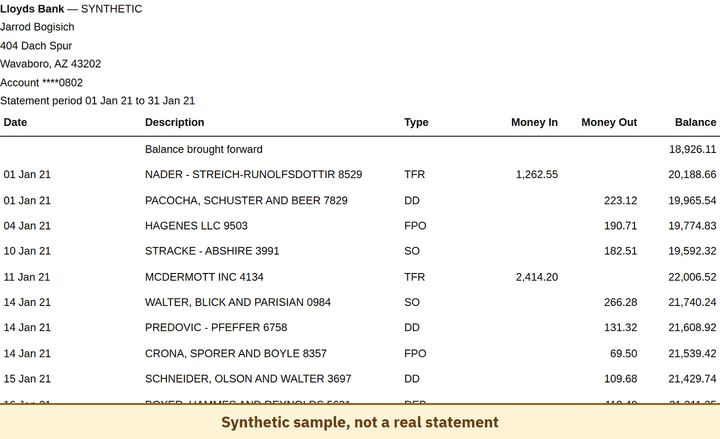
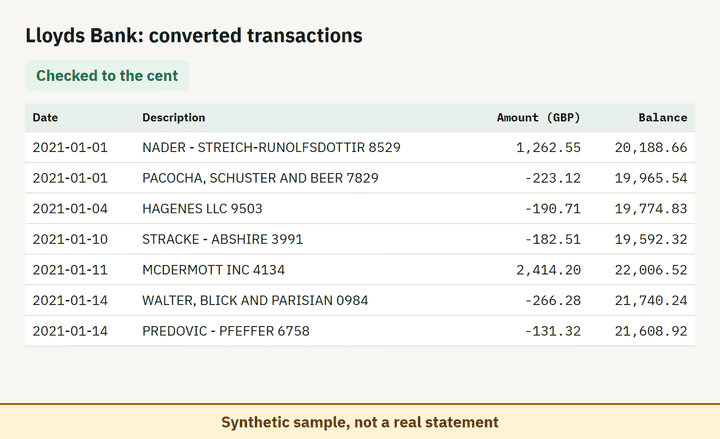
- Balance check passed on 100% of 8 perturbed synthetic files.
Which file to download from a Lloyds Bank statement
| Format | Imports into | Status |
|---|---|---|
| Excel (XLSX) | Microsoft Excel, Google Sheets, LibreOffice Calc, Apple Numbers | Available |
| CSV | Excel, Google Sheets, databases and scripts, most accounting tools that accept a custom CSV | Available |
| QBO (Web Connect) | QuickBooks Online (bank upload) | Available, follows the Intuit Web Connect specification |
| OFX | Xero, GnuCash, Moneydance, Banktivity, MoneyMoney, QuickBooks Online (bank upload) | Available, follows the OFX 2.2 specification |
| Xero CSV | Xero (Import a statement) | Available, follows the Xero CSV template |
| QuickBooks Online CSV | QuickBooks Online (Upload transactions) | Available, follows the QuickBooks Online 3-column layout |
Known limitations
- Beta: tested on synthetic replicas built from public Lloyds layout information, not yet on real statements. If the result looks wrong, mark the row with 'This row is wrong' or use 'Send page layout', which sends the masked layout only and none of your figures.
- Scanned or photographed statements are not supported.
Lloyds Bank statement FAQ
Can I convert a Lloyds PDF statement to Excel?
Yes. Drop the PDF into the converter on this page; it reads the Money In, Money Out and Balance columns and checks the result against the statement balances.
How do I download a Lloyds statement as PDF?
In the app open the account, then Manage account and Download or print statements. In Online Banking use View statement and download or print.
What do DEB, DD, SO and FPI mean on a Lloyds statement?
They are payment type codes: debit card, Direct Debit, standing order and Faster Payment in. The converter keeps the code out of the description.
Does Lloyds offer CSV statements?
Some guides report a CSV export in Online Banking, but it varies by account type. Check your own online banking.
Can I import the result into QuickBooks or Xero?
Yes. Export to QBO, OFX or the Xero CSV layout after the balance check passes.
Can I just use ChatGPT to convert my Lloyds Bank statement?
For a short statement, if you check the totals yourself. Here every Lloyds Bank row is checked against the statement balances for you. Converter or ChatGPT? See our comparison.
Test status
Last tested: November 2, 2026