United States · PDF to Excel, CSV, QBO, OFX, Xero
Convert Chase statements to Excel, CSV or QBO
BetaBeta: built from the bank's published layout
Chase statements group rows by section and print no running balance. Here is how the PDF is read and checked against the summary. Download Excel, CSV, QBO, OFX, Xero CSV or QuickBooks Online CSV; the PDF never leaves your device. Beta: tested on synthetic replicas of the Chase layout, not yet on real statements. Wrong row? Click "This row is wrong".
Chase statement at a glance
- Country
- United States
- Statement columns
- Date · Reference · Description · Amount
- Date format
- MM/DD
- Number format
- 1,234.56
- Currency
- USD
- Balance check
- Opening balance + rows = closing balance
- Export formats
- Excel (XLSX) · CSV · QBO (Web Connect) · OFX · Xero CSV · QuickBooks Online CSV
- CSV from the bank
- Available
Chase statement layout
What the statement shows
- Public descriptions say statements open with a Checking Summary box: Beginning Balance, counts and totals for Deposits and Additions, Electronic Withdrawals and Checks Paid, then Ending Balance.
- Public descriptions say statements group transactions into sections (Deposits and Additions, Electronic Withdrawals, Checks Paid), so the sign of an amount is given by its section, not by a column.
- In the layout described publicly, rows carry a short MM/DD date (no year), a description and an amount; there is no running balance per row.
- As described in public samples, each section ends with a 'Total...' line, and a Daily Ending Balance table lists the balance for each day with activity.
- Public sample descriptions say paid checks are listed by check number, date paid and amount; a caret marks checks whose image is on chase.com.
How the converter reads it
Chase checking statements are organised by section rather than by a single transaction table. Everything that adds money sits under Deposits and Additions. Everything that takes money out sits under Electronic Withdrawals or Checks Paid. Because the sign of an amount comes from the section heading and not from a minus sign or a separate column, a converter has to track which section it is reading while it walks down the page. The converter keeps that section context for every row, so a deposit exports as a positive amount and a withdrawal or a paid check exports as a negative one.
More detail
- Statements and documents are reached from the main menu on chase.com; depending on account type up to 7 years of statements are available.
The second thing to know is that the transaction rows carry no running balance. A bank that prints a balance on every line lets a converter verify each row against the one above it. Chase does not, so that kind of line-by-line check is not available for this layout. The balances you can rely on are the ones in the Checking Summary at the top, which lists the beginning balance and the ending balance, and the Daily Ending Balance table, which gives the balance for each day that had activity. The converter compares the rows it extracted with those statement figures, and shows a mismatch when they disagree.
Dates need care too. Rows show only the month and day, with no year. The year comes from the statement period printed at the top of the page. This matters most for statements that cross New Year, where a December row and a January row belong to different calendar years even though neither shows one. The export writes full ISO dates, so the spreadsheet or accounting tool you import into does not have to guess.
Paid checks are listed separately by check number, date paid and amount. A caret next to a check means its image can be seen on chase.com. Each section also ends with a Total line. Those lines are summaries of a section, not transactions.
Chase is marked Beta on this site. The layout notes above come from public descriptions of sample statements, because Chase's own pages do not describe the layout. The download steps come from chase.com. Support for Chase was tested on synthetic replicas of that layout. If a row, date or total looks wrong, the balance check shows it, and you can mark the row with "This row is wrong" or use "Send page layout", which sends the masked layout only and none of your figures. Business accounts and credit-card statements use different layouts and are not covered yet.
If you only need recent activity, Chase may let you download it as CSV, but the older history is available as PDF statements only. That is the main reason to convert a PDF: a full year of statements for taxes, a mortgage application, or a bookkeeper who needs every month in one workbook.
Sources: the bank's help pages and public descriptions of sample statements.
How to download your statement from Chase
On the website
- Sign in at chase.com and open the main menu (top left).
- Choose Statements & documents.
- Choose the year and account, then use the Open or Save icon beside the statement.
In the mobile app
- In the Chase Mobile app tap the Profile & Settings icon, then Statements & documents under Document manager.
- Choose the account, year and statement, then save or share the PDF.
Steps checked: November 1, 2026. The bank also offers a CSV export. Account activity can be downloaded as CSV for recent history; older transactions are only in PDF statements.
Sample preview and test results
Synthetic sample, not a real statement. Open the synthetic sample PDF
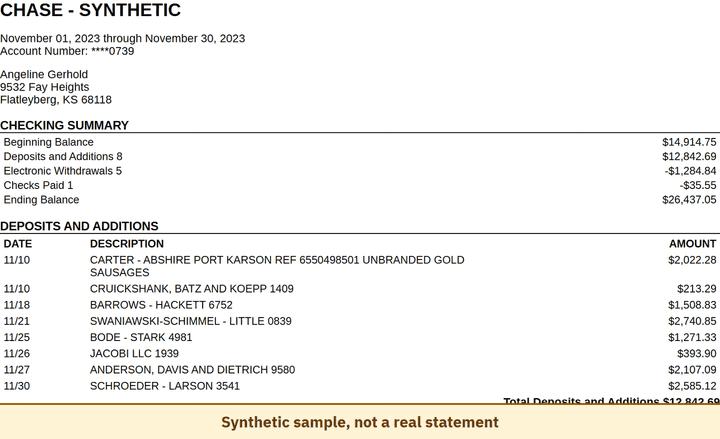
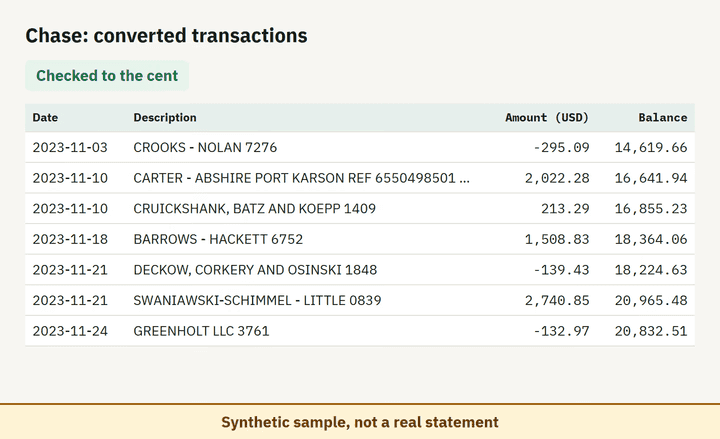
- Balance check passed on 100% of 8 perturbed synthetic files.
Which file to download from a Chase statement
| Format | Imports into | Status |
|---|---|---|
| Excel (XLSX) | Microsoft Excel, Google Sheets, LibreOffice Calc, Apple Numbers | Available |
| CSV | Excel, Google Sheets, databases and scripts, most accounting tools that accept a custom CSV | Available |
| QBO (Web Connect) | QuickBooks Online (bank upload) | Available, follows the Intuit Web Connect specification |
| OFX | Xero, GnuCash, Moneydance, Banktivity, MoneyMoney, QuickBooks Online (bank upload) | Available, follows the OFX 2.2 specification |
| Xero CSV | Xero (Import a statement) | Available, follows the Xero CSV template |
| QuickBooks Online CSV | QuickBooks Online (Upload transactions) | Available, follows the QuickBooks Online 3-column layout |
Known limitations
- The layout notes come from public descriptions of sample statements. Chase's own pages do not describe the statement sections.
- Beta: tested on synthetic replicas built from public Chase layout information, not yet on real statements. If the result looks wrong, mark the row with 'This row is wrong' or use 'Send page layout', which sends the masked layout only and none of your figures.
- Business and credit-card statements use different layouts and are not covered.
Chase statement FAQ
Why do Chase statement rows have no balance?
Chase lists transactions by section with no running balance; the balance is shown only in the summary and the Daily Ending Balance table.
How is a deposit told apart from a withdrawal?
By the section it sits in: Deposits and Additions add, Electronic Withdrawals and Checks Paid subtract.
Why is there no year on the dates?
Rows show MM/DD only; the year is taken from the statement period at the top.
How far back can I download Chase statements?
Up to 7 years depending on account type, per the Chase paperless statements page.
Can I just use ChatGPT to convert my Chase statement?
For a short statement, if you check the totals yourself. Here every Chase row is checked against the statement balances for you. Converter or ChatGPT? See our comparison.
Test status
Last tested: November 2, 2026